46. Run command prompt utilities successfully from shortcuts
If you have ever tried to create a shortcut to 'IPCONFIG' or any of the other myriads of useful command prompt utilities included with Windows XP, you have probably noticed that it does not actually work… Or rather, it does, but the command prompt window with your data opens and closes in a flash.
Here's a tip that will allow you to create working shortcuts on your desktop for any command. We will use the IPCONFIG utility as an example:
Right click an empty area of the desktop and select 'new.' Choose 'new shortcut' to open the shortcut wizard. In the 'type the location of the item' box, enter 'cmd /k' followed by the program you wish to run. In the case of IPCONFIG, you would enter 'cmd /k ipconfig'.
Name your shortcut something appropriate and give it an icon from the '%SystemRoot%\system32\SHELL32.dll' location. Now you have a fully working, very convenient desktop shortcut.
47. Remove the XP desktop theme
If you just can't get used to the appearance of Windows XP as opposed to the more 'sober' appearance of previous versions of Windows, there is a way to restore that old gray sheen to life, at least cosmetically.
To change to the 'classic' Windows appearance: Right-click on an empty portion of the desktop (no icons) and select 'properties.' Choose the 'themes' tab, and in the theme drop-down box, choose the 'windows classic' theme. Presto. Read on for more tips on making XP behave like its parents.
48. Change start menu style
Along the same theme as the tip above, let's look at how to revert your start menu back to the classic style seen in pre-XP versions of Windows. After using this tip, you will find that the menu scrolls downwards instead of expanding to fill your desktop.
Right-click the start button and hit 'properties'. Select the 'classic start menu' option to change the menu style. From here you can also hit the customize button to select additional items you wish to have present on the start menu.
Note that changing the start menu to the classic form also puts the 'my computer, 'my network places' and 'my documents' back on the desktop.
49. Add my computer and other missing icons to your desktop
If you've gotten used to working with older versions of Windows, XP's somewhat bare desktop setup can come as a bit of a shock. Where's 'My computer?' That, plus 'my network places' the link to Internet Explorer and most importantly 'my documents' are all missing from the desktop by default.
Fortunately, rectifying this is extremely easy: Right click on an open area of the desktop and hit 'properties.' Go to the 'desktop' tab, then choose 'customize desktop.' From this Window you can simply put checkmarks beside these common items to add them back to the desktop.
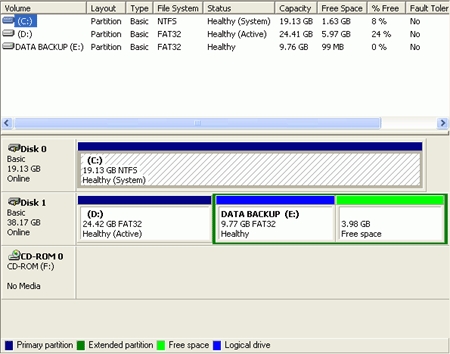
Customizing WinsdowsXP: tips 50 to 52 50. Change the picture in the welcome screen If you'd like to replace the picture identifying each user on the XP welcome screen with something more personalized, read on. Go to start\control panel\user accounts. Select the user account you wish to change and click 'change my picture.' From here, select 'browse for more pictures' and locate the pic you wish to use. XP will automatically size the picture down to fit, but be aware that the welcome pics are rather tiny, so use a shot that has good detail to start with or it will be difficult to see. 51. Add items to the 'Send To' right click option. (You will need to enable the viewing of hidden files and folders to use this tip. See tip #68) Windows XP, like previous versions of the operating system, has a handy 'send to' option in the menu that appears when you right click an icon in explorer. By default this contains only a few options, none of which are particularly useful except for creating shortcuts. However you can easily add your own destinations to the 'send to' menu. Very useful if you have a folder you use for backing up files, for example, and you want to periodically move different files and folders to that location for storage. To add items to the 'send to' command: In explorer, navigate to 'c:\documents and settings\(your user name)\send to' Any shortcuts to folders or applications placed in this folder will appear in the 'send to' option when you right click an icon. You could use this to send files to a Zip program, for example. Experiment with it, and I'm sure you'll find a few ways it can help you on a day-to-day basis. 52. Automatically run programs when starting Windows XP If there are applications or commands that you run every single time you start your computer (Email comes to mind) you may want to consider setting things up so that these programs run automatically during the Windows XP startup. This can be done quite easily in XP by creating shortcuts and shuffling them around. Here's how: Windows XP has a startup folder located at 'C:\ Documents and Settings\ (your user name)\ Start Menu\ Programs\Startup.' Shortcuts placed into this folder will be run automatically when Windows XP starts up. If you already have shortcuts for the programs you desire to use, copy and paste them into the startup folder. Otherwise, go to 'start\programs,' select the program you would like to create a shortcut for, right click it and select 'send to' then 'desktop.' This will create a shortcut on the desktop that you can then use. Customizing WinsdowsXP: tips 53 to 54 53. Create a screensaver from your pictures If you have a collection of photographs on your computer from a digital camera or scanner and you are looking for a more creative way to use them than simply putting them as your desktop background, Windows XP let's you automatically put these into a slideshow that functions as a screensaver. Even better, XP will format the pictures automatically to fit the screen, so you don't have to mess around with Photoshop beforehand. To create your personal slideshow screensaver: Right-click an empty spot on your desktop, and then hit 'Properties.' Select the 'screen saver' tab. In the screen saver dropdown box, select 'my pictures slideshow.' Now click the settings button. From here you can control the speed the pictures will be changed at, and set the directory they will be drawn from. By default it's set to the 'my pictures' folder. Now your screen saver will be a random set of pictures taken from your selected folder. 54. Modify autoplay for different types of CD Windows XP includes the ability to perform different actions depending on the type of CD you insert into the drive. For example, you could set your system to always respond to CDs containing MP3 files by opening Windows Media Player. To edit the Autoplay properties: Open 'my computer'. Right click on the drive you wish to set and select 'properties.' Choose the autoplay tab. Use the dropdown box to see the various recognized types of CD and choose appropriate actions for them. Customizing WinsdowsXP: tips 55 to 56 55. Different folder types with XP Windows XP gives you the option to customize a folder specifically for a certain type of data, like music files or photographs. These options will change the default way files are shown in the folder (using thumbnail view automatically for a pictures folder for example) and will also change the columns used to display information, adding an 'artist' and 'album name' column into a music folder to give one example. These customizations can make it easier to organize and keep track of your files. To customize a folder: Right click on the folder and select 'properties' then choose the 'customize' tab. Using the dropdown box at the top, you can select the various folder types available. Experiment until you find one to your liking. If you create a picture folder, you can also choose a picture which will appear on the icon for the folder itself, acting as a preview of the contents. You can also change the icon for your folder from this window. 56. Using 'my computer' as a toolbar If you click and drag your 'my computer' icon to the right side of the taskbar, just left of the light blue area, you will create a my computer taskbar. This opens into a start menu-style cascading menu that will allow you to easily access any file in your system. 57. Enlarge and resize the quicklaunch bar The default size of the quicklaunch bar in Window XP is quite restrictive. It can only display three icons without forcing you to click on an arrow to extend it. Fortunately, it is easy enough to extend the quicklaunch bar by moving it to another location. To do this: Right click on a free area of the taskbar and uncheck the 'lock the taskbar' menu item. Now click on the pattern of dots that appears just to the right of the start button, and drag to move the quick launch bar out of the taskbar. Drag the quicklaunch bar to one of the edges of the screen and release it so that it forms a bar. Right click the new quicklaunch bar and select 'always on top' and 'auto-hide.' Now you have a convenient quicklaunch bar that hides itself when not needed, and can easily hold all your shortcuts. 58. Disable desktop cleanup wizard The desktop cleanup wizard, run manually, analyzes the shortcuts on your desktop and informs you if any have not been used for more than 60 days. If you OK them, it will then delete these unused shortcuts. The cleanup wizard is also set by default to run every 60 days and delete unused shortcuts from the desktop. This can be inconvenient, for obvious reasons. To turn the automatic cleanup off: Go to 'start\control panel\display' and choose the 'desktop' tab. Click the 'customize desktop' button at the bottom. In the 'desktop cleanup' section, clear the 'run desktop cleanup wizard every 60 days' button. Next Section: Essential advice for beginners 59. Stopping desktop ad popups Have you been getting those irritating advertising pop-ups on your desktop? You know, the ones that show up in a little grey box, regardless of what you might happen to be doing on your PC, mostly advertising software you can download to stop said pop-up ads from occurring… Is this making your blood boil? Relax, there's an extremely easy way to get rid of them and no, you don't have to buy their software to do it. These ads are exploiting a feature of Windows 2000 and XP, the Messenger service. This service allows for text-based communication between computers on a network by using the 'net send \\(computername) message' command from the command prompt (remember start/run, type 'cmd'). Of course, some bright spark figured they could use this for advertising purposes. Essentially it's the same principal as sending text-based adds to cell-phone users. To stop these pop-ups, all you need to do is stop the 'messenger' service. To do this: Right click on 'my computer' and select 'manage.' Expand 'services and applications' and click 'services.' Highlight the 'messenger' service, right click it and select 'properties.' In the 'general' tab, click the 'stop' button to stop the service, then set the 'startup type' dropdown box to 'disabled.' This will ensure that the messenger service does not load the next time you start your computer. You will no longer get those pop-up messages on your desktop. Enjoy the peace and quiet. Note that the 'messenger' service has nothing whatsoever to do with Microsoft's 'MSN Messenger' instant messaging program, so don't worry about affecting it with this tip. Essential Advice for Beginners: Tips 60 to 61 60. Displaying hidden files and folders By default, many of the important system files and folders in Windows XP are hidden, meaning they cannot be seen by navigating with explorer. User created files can also be hidden. A simple option change enables you to see all hidden files and folders with Windows explorer. To view hidden files and folders: Open 'my computer' and click on the 'tools' menu item. Select 'folder options,' then the 'view' tab. Under the 'hidden files and folders' selection, choose 'show hidden files and folders.' Press 'ok.' 61. Convert Your drives to the NTFS file system The NTFS file system is the default file system used by Windows NT\2000\XP PRO\Server 2003. Unlike its predecessor, the FAT32 file system seen in Windows 9x/ME, it allows for effective security settings on individual files and folders by using ACLs or Access Control Lists. These are a list of permissions placed on each and every file, listing which users are allowed to access the file and what they are allowed to do with it. On top of its security advantage, NTFS drives are also easier to recover data from in the event of an emergency. NTFS drives are also a requirement for several features of Windows XP. As there is no effective performance difference between NTFS and FAT drives, it is recommended that you convert your logical drives to NTFS. This can be done one way only, as NTFS drives cannot be converted back to FAT 32. If you are using Windows XP Professional, chances are your drives are already formatted with NTFS, as this is the default. XP Home still defaults to FAT32 however. The only situation where it is not advisable to convert a drive would be in situations where multiple operating systems reside on the same computer. If one of these operating systems is unable to read NTFS (such as windows 9x/ME) it will lose access to the drive that has been converted to NTFS. If the converted drive contained that operating system's files, it will no longer be able to boot. To convert your drives to NTFS: Right click on 'my computer' and select 'manage'. From the computer management window, expand storage and select 'disk management.' Using the 'file system' column of the upper pane of this window, you can easily check what file system each of your logical drives is using. Make a note of this information. Now open a command prompt window by going to 'start\run' and typing 'cmd'. To convert a disk to NTFS, type: 'convert (driveletter): /fs:ntfs'. So for example, if you were going to convert your C: drive, you would type: 'Convert c: /fs:ntfs' at the prompt. Essential Advice for Beginners: Tips 62 to 64 62. Formatting a hard drive partition larger than 32 Gigs with FAT32 A built in, intentional limitation of Windows XP is that it will only create FAT32 (the older file system seen in Windows 9X\ME operating systems) partitions up to 32GB in size. If you have a disk larger than that and you wish to format it with FAT32, your only choice is to create multiple partitions of 32GB or less. There is an option however. You can use a boot disk from an older version of Windows such as Windows 98 or ME to partition the drive into one large FAT32 partition. Windows XP will then be able to use the space. You can obtain the necessary boot disk files at www.bootdisk.com Download the ME or 98 disk image, then use the FDISK utility to partition the drive and the FORMAT utility to format it with FAT32. See PCstats' hard drive installation article for details on how to complete these tasks. 63. Finding your IP address and other information with IPCONFIG If you find you need to quickly discover your computer's current IP address, or other information related to your networking setup, the easiest way to do this is to go to the command prompt Start\run\'cmd' And type 'ipconfig /all' Among other things, this will give you the name of your computer, your current IP address for all network adaptors, as well as the default gateways and DNS server information. 64. Update your machine automatically. Keeping your machine updated with the latest Microsoft patches and bug fixes can be considered an essential task involved in owning Windows XP. On one hand, it's a pain, and there's something to be said for the school of thought that claims that Microsoft's operating systems are unnecessarily complex and full of security holes and flaws. On the other hand, XP's internal complexity makes it externally simpler to use, certainly it's easier than Windows 2000 to get to grips with. Also, the fact is that the world works with Windows, meaning that all those nefarious and non-nefarious hackers out there are targeting Windows simply because of its popularity, not because it is any less inherently secure than alternative operating systems. Microsoft is simply trying to keep up with the work of thousands… But I digress; there is an easier way to update your box. To set your copy of Windows XP to update itself automatically: Right click on 'my computer' and select the 'automatic updates' tab. To enable automatic updating, choose either of the first two choices in the 'update notification' section. You can either have XP search for and download updates automatically, and only prompt you when you need to install them, or it can prompt before downloading so you can pick the updates you want. Once automatic updating is turned on, XP will periodically check for updates over the Internet. If your computer is not connected to the internet, the system will be unable to update automatically. Essential Advice for Beginners: Tips 65 to 68 65. Logging in as the 'Administrator' account Every Windows XP installation comes with an administrator account built in, the password for which you set during the install process. Of course, the administrator account does not actually show up on the welcome screen. If you have disabled the welcome screen you can do it easily enough, but what if you happen to like that friendly screen? Never fear, simply press CTRL+ALT+DEL twice and you will be transported to a login prompt that defaults to the administrator user account. 66. Update your drivers Not so much a tip as essential advice. Much like frequently updating windows, this is a good practice for improved system health, and especially performance. If your system contains even somewhat recent hardware, it's likely that the manufacturers are still working on upgrading and stabilizing the software drivers for some components of your computer. These new driver sets are generally made available for download at the manufacturer's website and will install over your older drivers. It is recommended that you take an inventory of the parts and brands in your system (if it is a store-assembled PC) or the manufacturer part number of your system itself (from big box retailers like Dell and Compaq) and visit the manufacturer's websites to attain the newest drivers. You may be surprised at the results. 67. Check your PC for spyware and other nasties Your PC could be hosting spyware or adware programs without your knowledge. These small applications, installed knowingly or unknowingly by the user (adware licenses are often buried inside the End User License Agreements of software packages like Kazaa Media Desktop) can pass information on your web surfing habits, among other things, to advertising companies, and enable them to target advertising based on your habits. These programs can also consume valuable system resources. While not specific to Windows XP, removing spyware and adware from your system is an excellent step towards better PC health. To check for these programs: Download either LavaSoft's Ad-Aware or PepiMK's Spybot Search and Destroy or both. Run these programs and update them via the built in interface, then check your system for spyware and adware programs. For more information on this topic, see PCstats' Guide on spyware and how to deal with it here. 68. Show the quicklaunch bar Don't fret though, the quicklaunch bar is still here, just not by default. Possibly to make room for the larger start button graphic in XP, Microsoft decided to have the quicklaunch bar present only as an option. Let's look at how to get it back. To re-enable the quicklaunch bar: Right click on the time display in the lower right corner of the taskbar and select 'properties.' Now look for the option entitled 'show quick launch.' Enable it. Now that your quick launch bar is back, you can drag and drop shortcuts onto it from the desktop to customize it. Essential Advice for Beginners: Tips 69 to 71 69. Locking the desktop If you are leaving your computer for a while and do not wish to turn it off, but want to assure that no-one else can use the computer while you are away, locking the desktop is the best option. By pressing WINDOWSKEY+L, you password protect your system just as if you had logged out or restarted the computer. The advantage is that any programs or processes that were running when you locked the desktop will stay open and running in the background, ready for you to resume work or play. 70. Using the Windows Scientific calculator feature This one's been in Windows for a while, but since few people seem to know about it, it's worth mentioning. The standard Windows calculator can be turned into a full-functioned scientific calculator with just a simple trip to the options menu. To enable the scientific calculator, open the calculator application, select the 'view' menu and choose 'scientific.' Presto. As I'm out of my depth talking about the functions of scientific calcs, I'll leave the rest for you engineering students and mad scientists to discover. 71. Accessibility tools Windows XP comes with a suite of tools designed to make the Windows environment more accessible for differently-abled users. These tools include a magnification utility and an on-screen keyboard, among other things, and are accessed via a wizard. Any user may find these tools occasionally useful, or at least interesting to play with, so give them a try. Find them at: 'start\all programs\accessories\accessibility\accessibility wizard.' This will run the wizard, which will help you configure your system with the accessibility tools. Alternatively, you can run the individual tools from the 'accessibility' menu under 'programs\accessories.' Essential Advice for Beginners: Tips 72 to 76 72. Set a new home page in explorer You may already know how to do this, but if you don't you'll thank us, especially if you happen to get hijacked by one of the many sites out there that will happily change Internet Explorer's home page if you click on the wrong thing. The easiest way to change IE's default page is to go to the web page you wish to use as your home page and then go to tools\internet options and under the 'home page' section, click the 'use current' button to set it. You can also simply type the address of any page you wish to use into the address bar here. 73. Remove the annoying dog from the search screen To get rid of this unwanted canine companion, open the search screen, click the dog and select 'turn off the animated character.' 74. Change the look of your mouse pointer. Windows XP offers several alternative appearance options for the standard mouse pointer. Whether you are using an older screen and are having difficulty tracking the pointer, or if you are simply bored of the default pointer appearance, you should find something you like here: Go to 'control panel\mouse' and select the 'pointer' tab. Using the drop down box, select a theme that appeals to you, then press 'ok.' 75. Email attachments are the most common vector for viruses. Consider this an essential tip. Yes, there are viruses that can infect your computer if you so much as open the email containing them. However, the vast majority of viruses, and certainly the most damaging ones, are transferred through email attachments. Never open an attachment from someone you do not know, regardless of what antivirus software you may be running. If someone you do know sends you an email with an attachment, look at the attached message first, use your virus scanner, then use your common sense; there are many breeds of computer viruses that can mail themselves out to every entry in an infected computer's address book, including themselves in an attachment. 76. Keyboard shortcuts There are many useful keyboard shortcuts available for use in Windows XP. You may want to consider learning some of these, as using the keyboard is still noticeably faster than using the mouse. Save some time and reduce wear and tear on yourself. Printing a full list of shortcuts here is sort of impractical, but you can find the official listing, straight from the source, here. Essential Advice for Beginners: Tips 77 77. Set CRT, or Cathode Ray Tube monitors, though differing from televisions in several respects, share one important characteristic. Like TVs, the picture you see is constantly being redrawn on the screen. This refreshing action is the cause of the almost imperceptible flicker seen in the typical computer monitor image. Now, the slower the monitor refreshes itself, the more perceptible this flicker is, and the more perceptible the flickering is, the more likely you are to suffer from eyestrain, headaches and general fatigue as a result of it. Windows XP defaults to a refresh rate of just 60Hz, meaning that the screen redraws itself 60 times a second. This is pretty much the lowest acceptable rate, and higher refresh settings can have a considerable positive effect on computer experience. Note that refresh settings are limited to a certain degree by the capabilities of your video card, and to a much greater degree by the capabilities of your monitor. Every monitor has a maximum refresh rate it is capable of displaying at a given resolution (for example, a typical 17-inch monitor of a few years ago will happily crank out 85Hz or more at a resolution of 800x600, but may only be capable of 60Hz at 1600x1200). If this refresh rate is exceeded, the image will be distorted and unusable. Older CRT monitors, especially 15-inch or smaller ones, tend not to be capable of a refresh rate much over 60Hz, especially at resolutions greater than 640X480. Also, setting the refresh rate does not have the same effect on LCD or flat panel monitors, as their screens are not redrawn in the same way. To change your monitor refresh rate: Right click on an empty space on your desktop (no icons) and select 'properties.' Click the 'settings' tab and choose the 'advanced' button. Now choose the 'adaptor' tab and click the 'show all modes' button. This presents you with a list of resolution, colour and refresh rate options that your video card\monitor combination is capable of displaying. You can experiment with these settings by using the 'apply' button. Note that a refresh rate of 75Hz or above is generally recommended, (keep in mind most monitors do not support settings higher than 85Hz). After you set the refresh rate, you may feel a little uncomfortable for a short while as your eyes adjust, but rest assured you will grow to appreciate the difference in ease of viewing. 78. Set power options You can easily edit Windows XP's power options to affect such things as how long it takes the monitor to turn off (if ever) when the machine is idle, and whether your Hard drives will spin down after a certain period of idle time to save energy and wear and tear. To edit XP's power options: Go to 'start\control panel\power options.' From here you can choose one of several set power schemes, or change the settings on the three main power saving options, turn off monitor, turn off hard disks and system standby. 79. Creating shortcuts Shortcuts are small files that simply point to the location of another file or folder. They can be created easily in one of two ways. Either right click on the file or folder itself and select 'create shortcut' from the resulting menu, then cut and paste the shortcut to where you want it, or right click an empty space in the area you want the new shortcut to be, select 'new' then 'shortcut' from the menu. Then once the wizard opens, browse to the file or folder you wish the shortcut to point to. 80. Create passwords for all your user accounts! Short and sweet, you MUST do this if you use the Internet, period. Even if you do not use the Internet, but other people have access to your system, you should still set secure passwords on every user account. By default Windows XP does not assign passwords to the accounts you create during the install process, and these accounts all have full administrative privileges to the system. All an outside intruder needs is your username in order to have your system resources laid out in front of them. Create passwords for all user accounts: Go to 'start\control panel\user accounts Select each user account (besides guest, which is disabled by default) and assign a password to it. Best practice is to use a combination of letters and numbers to foil password cracking software. 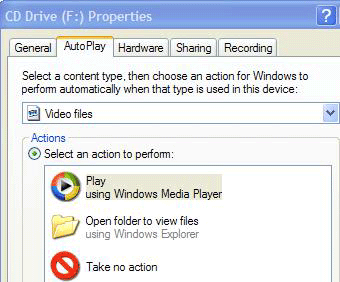


Customizing WinsdowsXP: tips 57 to 59

 The quicklaunch bar is a convenient toolbar containing shortcuts to commonly used programs. If you used any flavour of Windows from 98 to 2000, you probably became used to it sitting in the bottom left of the taskbar next to the start button. You also probably missed it when you started using XP, especially since it also means you are missing that essential 'minimize all windows and take me back to the desktop' button.
 Let's look at how to change them.

No comments:
Post a Comment