1. Turn off or reduce system restore to save hard drive space
Windows XP includes a system restore utility which is capable of rolling your computer back to a pre-defined point in time, removing all changes made to the system since that point. This can be an extremely useful feature for rescuing your PC from viruses or faulty software problems, but it also eats up a large amount of hard drive space.
By default, system restore reserves a whopping 12% of each logical drive for itself. You can considerably reduce the amount of space system restore uses by cutting back on the number of restore points the utility sets for itself, or you can turn the feature off altogether.
To adjust system restore settings: Right click on 'my computer' and select 'properties.' Choose the 'system restore' tab.
To disable system restore, simply check the 'turn off system restore on all drives' box. Otherwise, highlight a drive and click 'settings.'
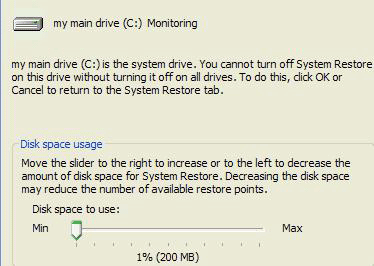
Using the slider, you can set how much space on this drive system restore will use for its restore points. Decreasing this number will limit some of your flexibility in restoring your system should it be necessary, but reducing the amount down to about 5% or less should still be safe enough for anyone with a 80GB hard drive. Click ok when you decide on the exact amount, or choose 5% if you are unsure.
2. Altering page files
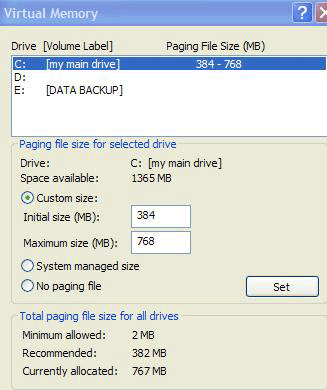 The page files are one or more areas of your hard disks that Windows XP reserves as virtual memory. To put it simply, these reserved areas are used to contain any data that may spill over from your main memory.
Virtual memory is accessed by Windows just like physical memory, but is many times slower, due to the much slower speed of hard drive data transfer as compared to RAM. Windows XP actually uses the Page files continuously, regardless of the amount of free memory on your system, so optimizing these files can have a positive effect on the performance of your computer.
To optimize the page file(s), there are a few options you can consider.
Page File Placement:
Since Page files require intermittent disk access to write and retrieve information, putting them on the same drive as the operating system can compromise the performance of both. Of course, since most systems contain only a single hard drive, this is not usually something that can be changed. If your system contains more than one hard disk, consider placing a page file on the the non-OS disk and removing the one on the OS-disk containing the Windows files.
To do this: Right click on 'my computer' and select 'properties' then the 'advanced' tab. In the 'performance' section, click 'settings' then select the 'advanced' tab. In the 'virtual memory' section, click 'change.' From here you can choose individual drives and customize the size of the paging files you wish to create. See below for more info.
Page File Size:
By default, page files are created with a starting size and a maximum size. These values allow Windows to resize the paging file as system demand grows. It is more efficient to set an identical starting and maximum value so that no resources are wasted resizing the file.
To do this, choose 'custom size' for each page file and set the initial and maximum sizes to the same number.
As for what size to set them at, the best bet is to leave them at, or slightly below the default 'maximum' setting the system assigned, with a ceiling of 1GB. This is the amount of space that is reserved for the file, regardless of its current size. If you are creating multiple page files, split the amount between them.
Performance Tips 3 to 5 3. Clean out the prefetch folder Windows XP uses a system called 'prefetch' to organize and preload some of the data necessary for commonly used applications and files. A folder called prefetch is used to store the information the operating system needs to carry out this operation. After several months of use, the prefetch folder may become quite overloaded with older references to software and files that may no longer be in use. It's a good idea to manually empty the older files out of the prefetch folder every few months or so. To do this: Navigate to 'c:\windows\prefetch' and delete all .PF files that are older than a week or two. 4. Set priority for individual programs If you regularly multi-task while you are working at your computer, but some of the applications you use require more horsepower than others to work effectively (for example using Adobe Photoshop along with Word or other less demanding programs), you may want to consider setting a custom priority for the high-demand applications. Priority is how the operating system determines how to share the processor time among applications. Most applications default to the 'normal' priority, so by setting your high demand application higher, you can increase its performance when multitasking. To do this: Load the program you wish to change the priority for and press CTRL+ALT+DEL to bring up the Task Manager. Select the applications tab and highlight your program. Right click the program and select 'go to process.' Now right click on the highlighted process and choose 'set priority.' The higher you set the priority above normal, the more CPU time the program will steal from other applications when you are multitasking. 5. Cleaning up unwanted startup programs Many freeware and commercial software programs have a habit of setting themselves up to run automatically upon Windows startup. This can contribute to the gradual decline in startup speed that most Windows XP systems (and windows PCs in general) experience. Also, having programs that you only use selectively, or not at all, load automatically is a waste of system resources that could be better used for other things. To top it off, many internet nasties such as spyware programs, viruses and Trojan horses will install themselves into one of the automatic start locations on your system in order to make sure that they are run on startup. So the point is, take a look at what is currently running every time you load your PC, and disable what you don't need or can't identify. If you remove the shortcuts from this directory, the applications will not load on startup. This directory can also be a repository for various badness such as spyware and virus software, so if there are files here which are not shortcuts and you don't recognize them, you may wish to consider removing them anyways, as Windows will not place critical files in this directory. The next location for removing unnecessary startup files is the handy MSCONFIG utility that has been resurrected from the graveyard of Windows 9x especially for XP. Go to 'start\run' and type 'msconfig' to access the utility. The 'startup' tab in MSCONFIG provides access to several other applications that are started at boot up and are running in the background. By examining their Filenames and directories, you should be able to get a feeling for what is necessary and what is not. Be aware than several viruses and worms have a habit of disguising themselves with authoritative sounding Windows system file names, such as the Win32.spybot.worm present in the above screenshot as MSCONFIG32.EXE. Leave these for now if you are not sure. The other method for removing these programs is through the programs themselves, as many applications, for example MSN messenger, contain the option to remove the software from startup. Performance Tips 6 to 7 6. Defrag your hard drive Defragmentation of a hard drive is the act of re-ordering the data on the drive so that each file can be read continuously from the disk. By default, Windows XP will attempt to store any files it needs to write to the hard drive in consecutive clusters (a cluster is the smallest unit of storage space available on a hard drive) on the drive, so that the file can then be read continuously. A hard drive which has been frequently used over a long period of time will have developed many fragmented files, files which are scattered over different clusters on the surface of the disk. This can occur because of many factors, for example uninstall programs that leave files behind, system crashes while in the act of writing to the hard drive, regular deletion of files, etc. A file becomes fragmented when the portion of consecutive clusters on the disk that Windows begins to write into is not large enough to hold the whole file. The remainder of the file then needs to be written to a different physical area of the disk. This does not have any effect on the operating system's ability to access the files themselves, but it does slow down disk access times (and by extension, any application that depends on disk access) due to the extra time needed to reposition the read heads of the hard drive to access the rest of the fragmented file. Windows XP includes a disk defragmentation utility which you can use to re-arrange the files on the drive and eliminate fragmentation. This can have a significant affect on the speed of your computer. To access this utility, go to 'start\programs\accessories\system tools\disk defragmenter.' To begin with, you need to analyze your hard disk(s) to see if defragmentation is needed. Select a drive and hit the 'analyze' button. This could take a little while depending on the amount of data on the drive. Whille the system is analyzing, it is best to leave your computer alone or the process may need to restart. Once the analysis is finished, you will have a graphical representation of your disk's level of fragmentation. See the pic below for an example of a highly fragmented drive. Windows will also inform you if it recommends defragmenting the drive. You must have 15% of the drive free in order to fully defragment it. Anything less will result in only a partial re-ordering of the files. You may need to delete a few things to obtain this free space. To defragment the drive, select it and hit the 'defragment' button. Note that depending on the size of the drive and the level of fragmentation, this can take a long time. It's a good thing to leave overnight, since you should not run anything else while doing the defrag either. 7. Disable unnecessary services Windows XP runs many, many services in the background. A lot of these are not actually necessary to the day-to-day operation of your PC, depending of course, on what you use it for. Creating a guide for which services are useful in which situation would unfortunately take up the entire remainder of this article just for itself, so we're not going to go in depth. The simple fact is different people will need different services enabled. To judge for yourself which are necessary, right click on 'My computer' and select 'manage.' From the computer management window, expand 'services and applications' then click 'services' to open up the window listing all available services. The ones labeled 'started' are currently running, and the startup type 'automatic' denotes a service which is started by windows each time the operating system loads. By highlighting each service, you can see a description of its properties, and make an informed decision on whether you need it or not. To stop a service from running, right click on it and select 'properties,' then stop it and make the startup type 'disabled.' If the description indicates that services which depend on the service you are currently examining will fail if it is disabled, you can go to the 'dependencies' tab to see which services will be affected. Good luck, and use common sense. If you don't understand what it does, leave it and move on to the next tip. Performance Tips 8 to 12 8. Disable the Disk performance counter(s) Windows XP contains a built in performance monitor that is constantly examining various areas of your system. This information can be called up using the performance monitor application found in control panel\administrative tools. Of course, most of us have little interest in this sort of performance statistics monitoring, that being more the territory of systems administrators than individual users. The thing is, XP is still monitoring away, and some of its observation tools can use a considerable amount of resources. The disk monitoring is an example of this, and it's a good idea to turn the disk monitors off if you are not planning to use the performance monitor application. To do this: Go to the command prompt ('start\run' then type 'cmd') and type 'diskperf -N' 9. Turn Off Windows Indexing service The 'Indexing' feature is used to increase the speed of file searches within XP by creating and updating an index of all files on your system. Unfortunately, it also reduces the performance of your system, since it is constantly working in the background. To turn it off: Go to Control Panel\Add/Remove Programs\Windows Components. Then uncheck 'Indexing Service.' 10. Increasing desktop Graphics Performance If you are running Windows XP on an older computer, you may find turning of some of the graphical frills that XP uses to render the desktop will improve the 'snappiness' of your computing experience. To see a list of these effects so that you can experiment with the effectiveness of turning them off: Right click on 'my computer' and hit 'properties.' Choose the 'advanced' tab. In the performance section, click the 'settings' button. A list of the various graphical effects that can be turned off or on is shown. To turn them all off, you can choose the 'adjust for best performance' button. Play around with these settings and see what you think. 11. Check and set the DMA mode on your drives Windows XP occasionally sets IDE hard drives and CD drives to the PIO transfer mode by default, which is slower than the standard DMA (Direct Memory Access) mode used by modern drives. It's worthwhile to check your drive settings to make sure that they are not being slowed down in this manner. To check your drives: Right click 'my computer' and select properties, then the 'hardware tab' then the 'device manager' button. Expand 'IDE ATA\ATAPI controllers' highlight 'primary IDE channel' and hit the 'properties' button. Go to the 'advanced settings' tab, and ensure that the transfer mode is set to 'DMA if available.' Repeat the above steps for the secondary IDE channel. 12. Smooth out your mouse movement Assuming you are using a PS/2 mouse, this tip can help give you smoother and more precise mouse control. Good for gaming and for your nerves in general. Studies have shown that smooth mousing reduces fatigue and stress and generally promotes a healthy cheerful glow (your experience may vary). On to the tip: Right click on 'my computer' and select properties. Choose the 'hardware' tab, then the 'device manager' button. From the device manager window, find your PS/2 mouse and select 'properties.' In the 'advanced settings' tab, set the 'sample rate' to 200. Useful tips for XP (13 to 16) 13. Resize screen fonts on the fly in Internet Explorer. Here's a simple useful tip that you can use in Internet Explorer. While viewing a web page, hold down CTRL and use the scroll button on your mouse to increase or decrease the size of the fonts on the page. Some websites really like using the small size 1 fonts, and if you're eyes have a hard time reading such small text, this little trick can make previously headache ridden websites much easier to read through. 14. Mouse Sonar Here's a good little tip for users who have trouble locating their mouse pointer on the screen. Windows XP has a nifty little 'mouse sonar' option available, which will cause your mouse pointer to pop-up a little concentric ring around itself to show you where it is. Go to 'start\control panel\mouse' choose the 'pointer options' tab and check the 'show location of pointer when I press the control key' box. 15. Quick back and forward commands in Internet explorer Here's a tip that can speed up your web surfing. When viewing a page in Internet Explorer, hold down SHIFT and use the mouse scroll wheel to quickly go forward or back through the pages you have viewed. 16. Mount a new hard drive as a folder in your C: drive Actually, this tip works for any partition of any NTFS formatted drive (except the partition with the Windows system files on it)… Windows XP, like 2000 before it, allows you to 'mount' drives as folders in a pre-existing logical drive. For example, if you had a computer with a 20GB disk formatted into a single partition and volume (drive c:), you could purchase a second drive, partition and format it from disk manager and then instead of giving it its own drive letter, add it to your c: drive as a directory. Any files added to that directory would of course be stored in the new HD. This can come in extremely handy, as certain applications (databases come to mind) can grow extremely large, but may not support storing data on a (logically) separate drive. As far as Windows is concerned, a drive mounted as a directory is just a directory, so no extra drive letters are involved. This can also cut down on storage confusion for the average user, and it's easy to do, though it can only be done with NTFS formatted partitions, and obviously the boot partition cannot be used this way, though other partitions can be added to the boot partition. Also note that shuffling the partition around in this way has no effect on the data stored in it. You can move an NTFS partition from directory to directory, then give it back a drive letter if you choose, while maintaining complete access to the data inside. No reboot is necessary. One other note: If you have installed software on a partition you plan to mount as a directory, it is best to uninstall and reinstall it, since the move may stop the software from working correctly. Windows will warn you about this if you forget my wise words. Remove the current option (if any), then click add. Choose the 'mount in the following empty NTFS folder,' browse to the desired volume and add a directory for your drive. Click 'ok.' That's it. If you wish to return things back to the way they were, simply repeat the procedure, removing the directory location and choosing a drive letter instead. The data on the drive will be unharmed. Useful Tips for XP: tips 17 to 18 17. Enable clear type Windows XP allows you to enable Microsoft's Clear Type font smoothing method. This blends the colours at the edges of type on screen, causing the letters to appear less jagged. While it is primarily intended to increase text quality for users of laptops and desktop PCs with LCD (flat panel) screens, it is worth experimenting with even if you use a traditional CRT. Be advised that certain ClearType settings may appear rather blurry on a CRT monitor. If you use an LCD monitor on a laptop or desktop, you should definitely enable Cleartype as the increase in text quality is considerable. To activate ClearType: Go to 'control panel\display' and select the 'appearance' tab. Click the 'effects' button. Ensure that the 'use the following method to smooth the edges of screen fonts' box is checked and change the drop down box to 'ClearType.' Once you have enabled cleartype, Microsoft has provided a web location where you can fine-tune your ClearType settings. Here it is the link. 18. Create a keyboard shortcut to a folder or program Shortcuts to programs are very convenient, but only if they are easily accessible. It can be a pain to have to minimize the window you are currently working in just to locate the shortcut you are looking for. To make things easier, XP features the ability to link shortcuts to user-defined key combinations, so you can easily activate the one you are looking for without disrupting what you are doing. Unfortunately this only works for shortcuts that are placed directly on the desktop, not in other folders, but it's still a useful little tip. To do it: Select the folder or program icon that you wish to use. Create a shortcut for it by right clicking on the item and selecting 'create shortcut' from the menu. Place your newly created shortcut on the desktop by dragging or cut/pasting. Right click the shortcut and select 'properties.' Select the 'shortcut' tab and enter the key combination you wish to use (XP will automatically edit the combination if it is not acceptable. Just entering 'e' for example, will get you an actual key combination of ctrl + alt + e). Click 'ok.' Now you can open the specified shortcut without altering your workflow. Good stuff. Useful Tips for XP: tip 19 19. Use remote desktop to connect to your PC from anywhere (XP Pro only) Windows XP Professional includes Microsoft's remote desktop software, which can be used to access your computer from anywhere you have Internet access. Not only can you access your system, you can actually see and manipulate the desktop environment just as if you were seated in front of the system. Let's look at how to do this: In order to use Remote Desktop to connect to your home computer remotely, it must first be enabled. Right click on 'my computer' then select the 'remote' tab, and check the box entitled 'allow computers to connect remotely to this computer.' Note: please ensure that all of your user accounts are using proper passwords before you enable this option, otherwise anyone with internet access and a Windows system can theoretically access and control your computer. Using the 'select remote users' button, you can select user accounts that have access to the computer remotely. All members of the administrators group (that is, the built in 'administrator' account and any users who were added during the install process) are allowed remote access automatically. Now you can install Remote Desktop Web Connection if you wish. This allows client computers to access the remote desktop through Internet explorer, eliminating the need to download and install the (freely available from Microsoft) 'Remote desktop client' program. Insert the Windows XP Professional CD and select 'install additional windows components. Highlight 'internet information services (IIS)' and click 'details.' Highlight 'world wide web services' and click 'details.' Now put a check beside 'Remote desktop web connection,' hit 'ok' twice and then 'next' to install. Now to connect to the remote desktop from any client computer with Internet Explorer 4 or better installed, simply type 'http://(IP address of your home computer)/tsweb' to bring up the web connect dialog screen. For more information on using remote desktop, see PCstats Guide to remote computing here. Useful Tips for XP: tips 20 to 22 20. WinXP Powertoys Microsoft has made several extra tools and utilities for Windows XP available on their website. These 'powertoys' offer extra functionality in certain areas of the Windows XP operating system. The downloads include an enhanced calculator, and image resizer, and Microsoft's popular TweakUI program which allows you to change many of the variables of the Windows XP user interface. To see a 21. Backing up or transferring your email manually with outlook express If you would like to ensure that you always have a backup of your Outlook Express mailboxes available, there is an easy way to do it manually. Note that you must have enabled viewing of hidden folders (in Windows Exporer/tools/Folder Options/View Tab/ enable "show hidden files and folders") in order to successfully view your mailboxes. Navigate to c:\documents and settings\(your username)\ Local Settings\Application Data\Identities\(some very long and complicated string of numbers and letters)\Microsoft\Outlook Express You will see a .DBX file for each of your mailboxes. Transferring these to another hard drive or burning them onto a CD at regular intervals will ensure that you can always restore your email records should you be forced to reinstall Windows. To restore your mailboxes in the event of reinstalling Windows, simply copy them back into the same folder once the install is complete, overwriting the existing files. You will now have access to all your email records. 22. Running legacy software in Windows XP Essentially, XP can be set to mimic various OS environments for that program only. If you have a program that simply refuses to work on XP, give these methods a try: After installing the application, right click on the executable file or the shortcut to it, and select 'properties.' Choose the 'compatibility' tab. The first section in this window 'compatibility mode,' covers mimicking various operating system environments to try and make your application more comfortable. If you know the app is designed for one of the operating systems contained in the drop-down box, try it out. Useful Tips for XP: tips 23 to 26 23. Compressing files and folders to save space Windows XP includes a built in compression utility which can save you some valuable space on your hard disk by archiving little used files. Working similarly to compression programs such as PKZIP and WINRAR, the built in software reduces the space your files take up on the disk at the penalty of increased disk access time for the compressed files in question. There are several ways of compressing data on your system: If you have a pre-existing folder and would like to compress everything in it, right click on the folder, select 'properties' then the 'advanced' button at the bottom. In the 'compress or encrypt attributes' section, check the 'compress contents to save disk space' option. If you wish to create a compressed folder for a file or folder separate from the one it is in now, right click on the item you wish to compress and choose 'send to\compressed (zipped) folder.' This will create a new compressed folder in the same location as the original file or folder. 24. Open explorer window from current command prompt directory There is a built in command prompt ('start\run' then type 'cmd') command that will open a Windows Explorer window to your exact current directory location in the DOS-oriented command prompt. Simply type 'Start .' from the prompt to open up explorer in that location. And yes, that is 'start(space).' 25. Using Quick Edit in the Command Prompt The Quick Edit function allows you to cut and paste text to and from the command prompt window, something which you may have become used to not being able to do. To activate Quick Edit: Open a command prompt Window ('start\run' and type 'cmd'). Right click on the toolbar at the top and select 'properties.' Put a checkmark in the Quick Edit mode box. When prompted, opt to apply changes to all similar windows. Now that Quick Edit is enabled in the command prompt, you can click and drag to highlight text, then press ENTER to copy it to the clipboard. To paste text from the clipboard, simply right click on the command prompt window. 26. Select 'No to all' when copying files in XP Have you ever noticed that Windows XP gives you the 'yes to all' option in its file copy dialog box, useful if you would like to overwrite files in a directory with newer files of the same name from another location, for example, but fails to offer a 'no to all' option for doing the opposite. Kind of annoying if you think about it. What if you have a lengthy file copy operation partially finished, and wish to restart it? If you use the default options, you essentially have to recopy every file, since saying 'no' to each and every duplicate file will take just as long, and cause your mouse finger to fall off. Fortunately, there is a way to tell your computer not to copy all duplicated files with a single command: To do this, when the file copy dialog box appears asking you whether you wish to overwrite the first file, hold down SHIFT and click 'no.' This will automatically answer no for all following files. Note that it will ask you again for the first folder it encounters, so follow the procedure again to answer no automatically for all folders. This will dramatically speed up the file copying process. Useful Tips for XP: tips 27 to 30 27. Bypass the recycle bin when deleting a file If you do not wish a file or folder you are deleting (or a group of files or folders) to end up in the recycle bin, for security or privacy reasons, there is a simple keyboard shortcut to avoid it. To bypass the recycle bin when deleting a file, press and hold the SHIFT key as you press delete or select the delete command from the menu. You will see a request for confirmation, and once you say 'yes' the files will be permanently deleted, and absolutely non-restorable from WindowsXP. 28. Create a link to shutdown your PC To create a useful link desktop link to shutdown or restart your PC, follow these directions: Right click on an empty area of your desktop, then select 'new' and 'shortcut' to open the new shortcut wizard. When prompted for the location of the shortcut, enter 'SHUTDOWN -s -t 01' to shutdown the system or 'SHUTDOWN -r -t 01' to restart the system. Name the shortcut and give it an appropriate icon from the '%SystemRoot%\system32\SHELL32.dll' location. You now have a quick shortcut to shutdown or restart your system! Perfect for getting out of the office right at 5:00PM on the dot! 29. Hosting online games through the Windows XP firewall If you are using the Windows XP firewall and you wish to host an online game such as Quake 3, or other applications that require users on the Internet to contact your computer directly, you will need to customize your firewall slightly to allow these specific communications through. Fortunately the XP firewall makes these changes fairly easy to do. To customize your firewall: Go to 'start\control panel\network connections'. Right click on the network connection that has the firewall enabled and go to 'properties.' Choose the 'settings' button at the bottom. On the 'services' tab, click the 'add' button. This window will add the application that you are using to the firewall's list of data that is allowed into your computer. You will need to find out the port that your application uses. This information should be available from the documentation or from the software manufacturer's website. Input a description for your convenience, then the computer name or IP address of the computer that is hosting the program, then put the port number that the program uses. Note that as long as the program is running on the computer that uses the XP firewall, the internal and external port will be the same. Click 'ok' to apply the rule. Your firewall will now allow connections through the port you specified. 30. Rename multiple files simultaneously In windows XP explorer, you can rename multiple files at the same time simply by highlighting all the files you wish to change, right clicking one of them and selecting 'rename.' Once you have done this, all the files will share the same name with a number in brackets differentiating them. Security, privacy and recovery tips (31 to 33) 31. Use the Windows 2000-style secure logon screen If you'd like a little more security in your home setup, you may want to consider eliminating the Welcome screen altogether, as this provides anyone trying to log into your computer with your username. The solution for this is to restore the secure logon screen used in Windows 2000, forcing all users to enter both username and password. To enable this: Go to start\control panel\user accounts\change the way users log on or off. Clear the 'use the welcome screen' button. 32. Hiding shared folders with $ If you would like to share a folder so that users on your network can access it easily, but are worried about displaying the folder for anyone to browse through, there is an easy way to render a shared folder invisible but still accessible. To browse to a hidden shared folder from another computer, simply click 'start/run' then type \\(name of the computer the share is on)\(sharename$) and press enter. 33. Using advanced file security settings in Windows XP Home Windows XP is based on the same platform as Windows 2000, and shares that operating system's robust file security options, at least when using the NTFS file system. Unfortunately this security system, which enables an administrator to decide exactly which files and programs any given user will have access to, is not actually implemented by default in Windows XP. This is a concession Microsoft made to avoid confusing basic users of XP Pro, and to cripple XP Home. The NTFS file security options can be enabled easily enough in XP Pro, but are apparently non-existent in the Home version. Fact is, the tools are there, you just need to look a little bit harder. To enable NTFS file security in Windows XP Home: First you need to assure that at least your main hard drive is formatted with the NTFS file system. See tip #61 for instructions on this. Restart your system. Just after the memory and BIOS check screen, but before the Windows splash screen comes up, press F8 a few times. When the Windows boot menu appears, select 'safe mode' from the list of options. Once Windows has loaded in safe mode, right click the folders and files you would like to change access to. You will notice that the 'security' tab now exists, and thus you are allowed to assign or deny access to individual users for each file, folder and program. Once you are done, restart Windows normally, and your changes will be enforced. Security, privacy and recovery: tips 34 to 36 34. Create a password reset disk Here's an important tip… If you are using a password protected user account in Windows XP (and you really, really should be ) you might be nervous about forgetting your password. Well here's a way to put your mind at ease, at least a little bit. Windows XP allows users to create a password reset disk specific to their user account. This disk can be used at the welcome screen to reset your password in the event that you do forget it. To create the disk: Go to start\control panel\user accounts. Select the account you are currently logged in as. Under the 'related tasks' heading in the top left corner, click 'prevent a forgotten password' to open the forgotten password wizard. Insert a blank floppy disk and follow the instructions to create your password reset disk. To use the password reset disk in case of emergency: Once you have created a password reset disk for a specific user, the next time the password for that user is entered incorrectly at the welcome screen, a message will pop up asking if you have forgotten your password. At this point you can elect to use your password reset disk. Follow the instructions to reset your password. Note: There are a couple of possible problems with the above procedure. For one, if you have used Windows XP's built in encryption feature to encrypt some of your files and folders, but have not yet updated to service pack 1, do not reset your password, as you will lose access to all the encrypted data. Once you have got service pack 1, it is safe to use the disk. Also, you cannot gain access to the reset feature if you have disabled the welcome screen on XP by using tip #31 above. Keep your reset disk in a safe location, because anyone else can also use it to reset your password.... muhahaa! 35. Applying a password to the 'administrator' account in XP Home All versions of Windows XP come with a built in administrator account. In the case of XP Home, this account can only be accessed in safe mode. Unfortunately, the administrative account in XP Home has no password by default, meaning anyone who knows how to launch windows in safe mode could potentially see your data. To password protect the administrator account in XP Home: Restart your system. Just after the memory and BIOS check screen, but before the Windows splash screen comes up, press F8 a few times. When the Windows boot menu appears, select 'safe mode' from the list of options. Once Windows XP has loaded into safe mode, go to 'start\control panel\user accounts' select the administrator account and apply a password to it. Restart normally. 36. 'Rolling back' a faulty device driver Windows XP has the ability to store previous versions of the device driver for certain hardware devices like video cards and sound cards. This enables you to 'roll back' and replace a driver that is having problems with a proven older version. Obviously, this only works if you have previously updated that device with a new driver. To 'roll back' a driver: Right click 'my computer' and select properties, then the 'hardware tab' then the 'device manager' button. Locate and highlight the hardware device you wish to roll back the drivers on. Press the 'properties' button. Select the 'driver' tab and click the 'roll back driver' button. If you have a stored older driver for the device, you will be asked if you wish to roll it back. Security, privacy and recovery: tips 37 to 39 37. Disable simple file sharing (XP Professional only) Windows XP uses a new streamlined method of sharing files, called 'simple file sharing,' by default. This method is similar to the system used with Windows 9x/ME in that it does not check user credentials before allowing access to the share. The only option you can specify is whether remote users have the ability to change the share by adding editing or deleting files. If you desire more security for your shares, you can revert to the higher security method of sharing files used in Windows 2000. This allows you to specify whether individual users on your system are allowed to access each share, and whether they can change the shared data or only read and copy it. To implement this: Go to 'my computer.' Select 'tools' from the menu and click 'folder options.' Choose the 'view' tab. Find and uncheck the 'use simple file sharing' box. Click 'ok'. 38. Using the Windows XP firewall All versions of Windows XP come with built-in software firewalls. The XP firewall software offers better-than-adequate protection against most common forms of Internet attacks and eavesdropping, so it's a good idea to enable it. The exception to this is if you are using a device that contains a hardware firewall, such as a home router. The firewall is disabled by default in Windows XP, unless you have installed The Service Pack 2 update released in August of 2004. Go to the 'advanced' tab and place a checkmark in the 'Internet connection firewall' box and click 'ok.' Your computer is now protected. If you aren't yet using WinXP SP2, we have more information on configuring the Windows XP firewall, and firewalls in general right here. 39. Turn autocomplete off in IE By default, Windows XP and Internet Explorer 6 will examine what you are typing in the address bar and pop up a list of similar entries you entered recently. It also stores entries you have made on web documents and forms, including usernames and passwords. While this can help speed up your web surfing experience, it can also potentially compromise your privacy if multiple people are using the same user account on your system. Fortunately, autocomplete can be easily disabled through the IE options menu. To do this: From Internet Explorer, go to the Tools menu, then select 'options.' Choose the 'content' tab, then click the 'autocomplete' button. Disable the various options as you see fit. You can also clear autocomplete's memory cache for web forms and passwords from this window. Security, privacy and recovery: tips 40 to 42 40. Using the Windows XP repair installation process Is your XP system is refusing to boot, giving you constant blue screens or other unpleasantness? before you decide to head off to your local computer shop or reinstall Windows yourself, give this tip a try. It may not work, but then again, it might fix everything, as it has for me on a couple of occasions when my operating system became corrupted because of some.... (ahem) software. You will need a valid Windows XP CD for this tip: Boot the system from your XP CD. Choose the 'press enter to set up Windows XP now' option. Press F8 to skip through the EULA (though if you haven't read it before, you should now. See PCstats' legal article for details as to why). Now press R to begin a repair installation. Your system will go through the entire XP install process, but will not attempt to replace any of your existing data. It will simply reinstall the vital system files, fixing any that are corrupted or missing. If this is the problem that is causing your system not to boot, chances are things will be back to normal. 41. Add, Clear or remove the 'my recent documents' menu In Windows XP Professional, the Start menu contains a 'My Recent Documents' folder that holds 15 of your most recently accessed documents. If, for privacy reasons, you would like to remove this feature, or at least clear it, read on: Right-click the start button, select 'properties' then 'customize.' Select the 'advanced' tab. At the bottom, in the 'recent documents' section, you have the options to clear the list, or remove it completely. If you are using Windows XP Home and you would like to have the 'my recent documents' folder available to you: Right-click the start button, select 'properties' then 'customize.' Select the 'advanced' tab. Now place a checkmark in the 'list my most recently opened documents' check box. 42. Creating a desktop shortcut for locking your computer If you use your computer in an area where others may have access to it, and there are things on your system you would rather have kept confidential, locking your desktop when you leave the computer is an essential task. Here's a recipe for a desktop shortcut that will lock your computer in two easy clicks: Right click on an empty area of the desktop and choose 'new' then 'shortcut.' The create shortcut wizard will open; in the first text box, type '%windir%\System32\rundll32.exe user32.dll,LockWorkStation' and then give your shortcut an appropriate name on the next page, and hit 'finish.' You will notice that the shortcut you created has a blank icon. To select a more appropriate one, right click on the shortcut and hit 'properties.' In the 'shortcut' tab, click the 'change icon' button. In the 'look for icons in this file' box, type '%SystemRoot%\system32\SHELL32.dll' then click 'ok' to see a range of icons for your new shortcut. Choose an appropriate icon. Your desktop locking shortcut is now ready for use. Test it out. Security, privacy and recovery: tips 43 to 45 43. Giving a password to the 'Guest' user account Windows XP contains a guest account (turned off by default in XP Pro) that has the rather unique distinction of not having a password. Not only does the account not have a password, you can't even set one. As you can see, if this account is active, it presents a slight security risk. Fortunately, there is an easy way to assign a password to the guest account: To apply a Password to the guest account: Using an account with administrative privileges, go to the command prompt ('start\run' then type 'cmd') and enter the following command: 'Net user guest password' Now go to 'start\control panel\user accounts' and activate the guest account if it is not already. You will be able to assign and change its password. 44. Use system restore when you cannot boot your system normally If your system has failed to the point where you cannot access the Windows GUI either through booting normally or through safe mode, you may still have the chance to use the System Restore feature if you have it enabled, by running it form the command prompt. To do this: Restart your computer and press F8 after the POST screen to bring up the Windows XP boot menu. Choose 'boot in safe mode with command prompt.' If your system gets to the command prompt successfully, type '%systemroot%\system32\restore\rstrui.exe' and then press enter. Follow the onscreen instructions to restore your computer to a previous saved point. Next Section; Customizing Windows XP 45. Stop Windows messenger from running Windows XP was the first of Microsoft's operating systems to include a built in instant messaging application, the Windows Messenger (a variant of Microsoft's popular MSN Messenger service). Unfortunately for those who don't use instant messaging services, the program is extremely difficult to avoid, especially if you use Outlook Express as your mail client. By default, Windows Messenger is started each time windows starts, and will attempt to log you in as soon as you connect to the internet, and every time you start Outlook Express. Worse yet, it will reappear when you start Outlook Express even in you have uninstalled it. With a combination of steps, you can disable Windows Messenger, though it is not really possible to actually remove it from the computer. Let's look at how to do this: To stop Windows Messenger from reappearing each time you start Outlook Express, open OE then go to 'tools\options' and uncheck the 'automatically log into Windows Messenger' box. Close OE, exit from Messenger and also close any browser windows. Now you need to find out if you have Service Pack 1 for Windows XP installed. If you are not sure, right click on 'my computer' and select 'properties.' In the first Window under the system heading, your version of Windows XP will be shown. If you do have service pack 1 installed, simply go to 'start\control panel\add/remove programs' to remove the messenger service. If you do not, go to 'start\run' and type 'RunDll32 advpack.dll,LaunchINFSection %windir%\INF\msmsgs.inf,BLC.Remove' To remove the program.  To do this: The first place you should go is 'start\programs\startup' which is a directory Windows XP uses to launch application shortcuts on boot-up.

 To mount a partition as a directory: Open disk manager, the right click on the partition you wish to mount as a directory in the graphical partition window (lower pane). Select 'change drive letter and paths…'
  Press 'OK.'

 Windows 2000 was a step forward for the Windows operating system in many ways, with its enhanced security and stability, but one flaw it possessed that frustrated (and continues to frustrate) many users was its inability to cope well with software written for older operating systems such as DOS and early Windows 95 applications. Apparently Microsoft learned from their mistakes in this area, for Windows XP includes several options designed to make your older software more compatible with the XP version of the Windows NT kernel.
 From the shared folder dialog: (right click on desired folder\sharing and security\). You can hide a shared folder by simply adding a '$' to the end of the name you give the folder in the 'sharing and security' window. In this way, you can maintain network access to shared folders, while hiding them from prying eyes.
  To enable and configure the firewall: Go to start\control panel\network connections and right click on your Internet connection, or the network adaptor you use to receive the Internet from another computer and hit 'properties.'

No comments:
Post a Comment